
INSTALLED · CHROMIUM
GetWebP is ready.
Two codecs, supported right-click saves, no outbound traffic — all processing happens inside Chrome.
engine      libwebp + libavif
storage     local · zero-copy
Next: pin the extension →
Pin it for quick access.
Chrome hides new extensions by default. Pin GetWebP so it's always one click away.
- 1Click the Extensions (Puzzle) icon in the toolbar.
- 2Find GetWebP in the list.
- 3Click the Pin icon next to it.
Extensions
Try it now.
Right-click the image below and save it as WebP. The result will appear here automatically.
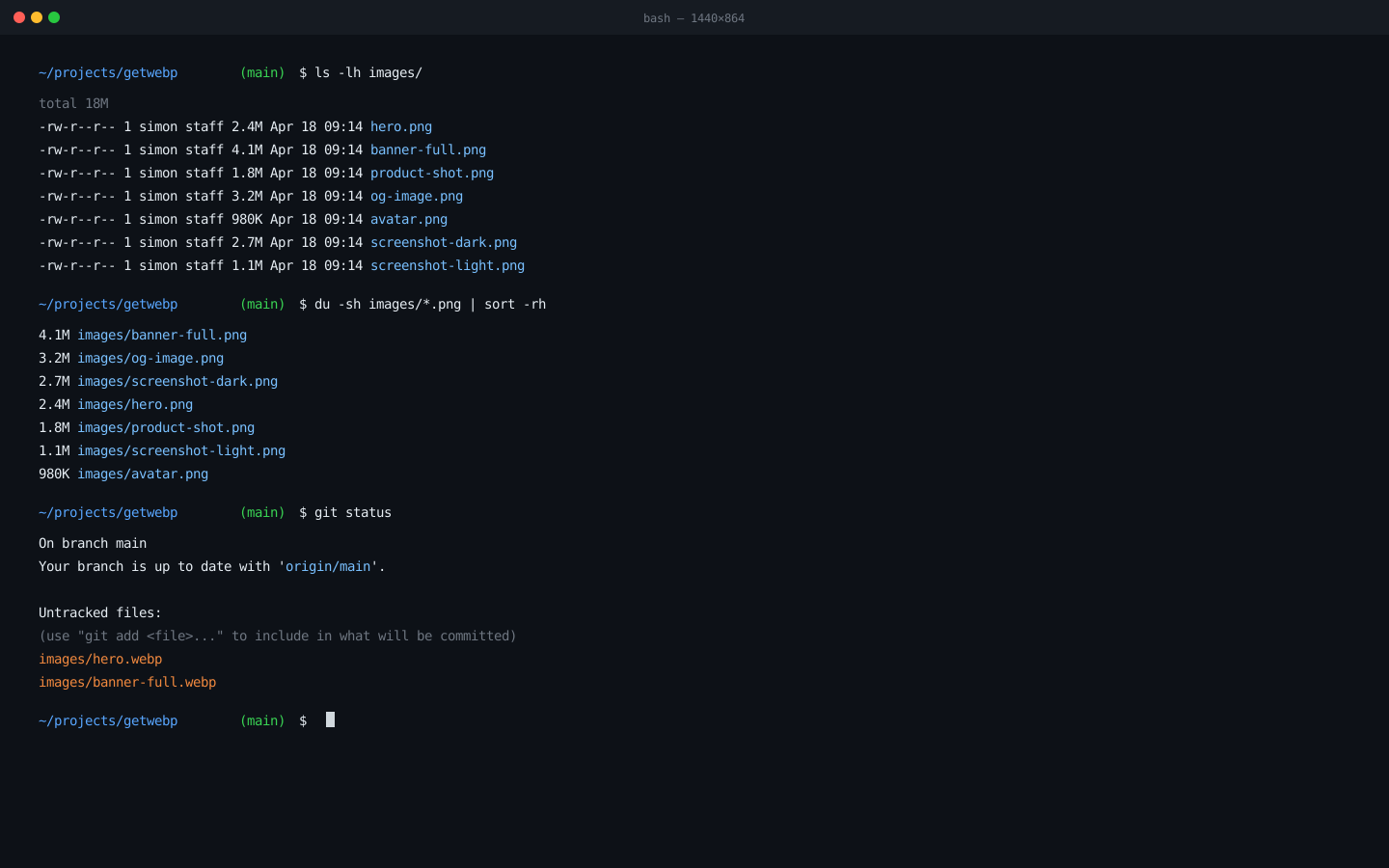
Right-click the image above and choose Save as WebP (or Save as AVIF). The file lands in your Downloads folder.
// waiting for right-click conversion…
The converted file lands in your Downloads folder. Open it to confirm the WebP format.
What to try next.
Three ways to get more out of GetWebP.
Open the side panel
Right-click supported webpage images → Edit in GetWebP… to adjust quality, pick a preset, and choose WebP or AVIF before downloading.
Batch convert
Drag a folder of images into the side panel. GetWebP processes everything locally — no upload, no wait.
More right-click options
Besides Save as WebP, try Copy as Base64, Copy as HTML <img>, or Copy as Markdown — useful for developers and writers.
You're set. GetWebP runs locally and stays out of your way.
GetWebP · MIT · runs locally