
INSTALLED · CHROMIUM
GetWebP is ready.
Two codecs, supported right-click saves, no outbound traffic — all processing happens inside Chrome.
engine      libwebp 1.4 · AVIF via libavif · WASM
storage     browser filesystem only · zero cloud
Step 1 — Pin it to the toolbar →
Pin it for quick access.
Chrome hides new extensions by default. Pin GetWebP so it's always one click away.
- 1Click the Extensions (Puzzle) icon in the toolbar.
- 2Find GetWebP in the list.
- 3Click the Pin icon next to it.
Extensions
Try it on a real image.
Right-click the image below and save it as WebP. The result will appear here automatically.
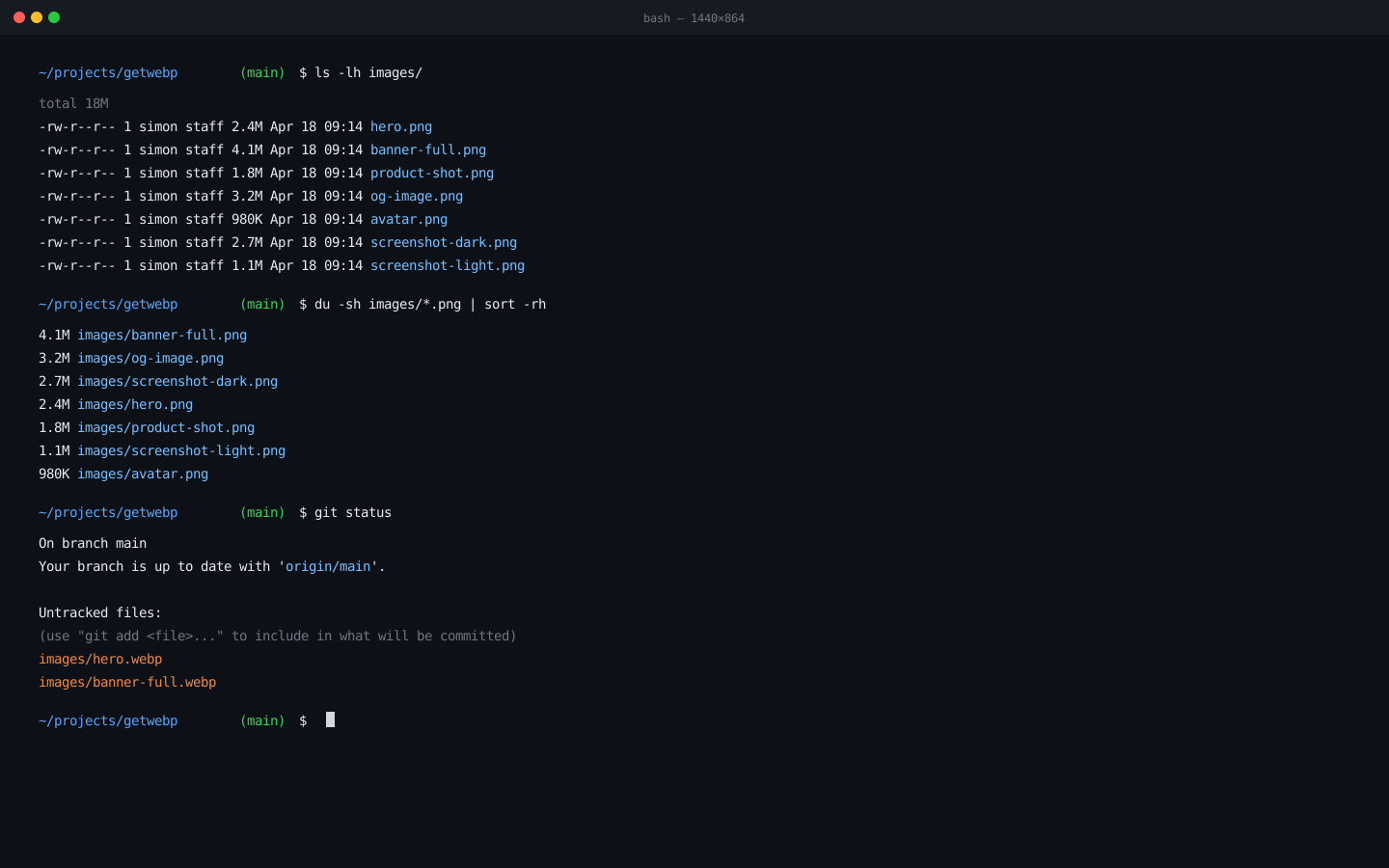
Right-click the image above and choose Save as WebP (or Save as AVIF). The file lands in your Downloads folder.
// waiting for conversion…
Want quality controls? Right-click → Edit in GetWebP…
What to try next.
Three ways to get more out of GetWebP.
Open the side panel
Right-click supported webpage images → Edit in GetWebP… to adjust quality, pick a preset, and choose WebP or AVIF before downloading.
Batch convert
Drag a folder of images into the side panel. GetWebP processes everything locally — no upload, no wait.
More right-click options
Besides Save as WebP, try Copy as Base64, Copy as HTML <img>, or Copy as Markdown — useful for developers and writers.
You're set. GetWebP runs locally and stays out of your way.
v0.x.x · MIT · runs locally